

Landing Page & My Rooms
CollMap has two “home” screens: the landing page for signed-out visitors, and the My Rooms dashboard once you’re signed in.
The landing page
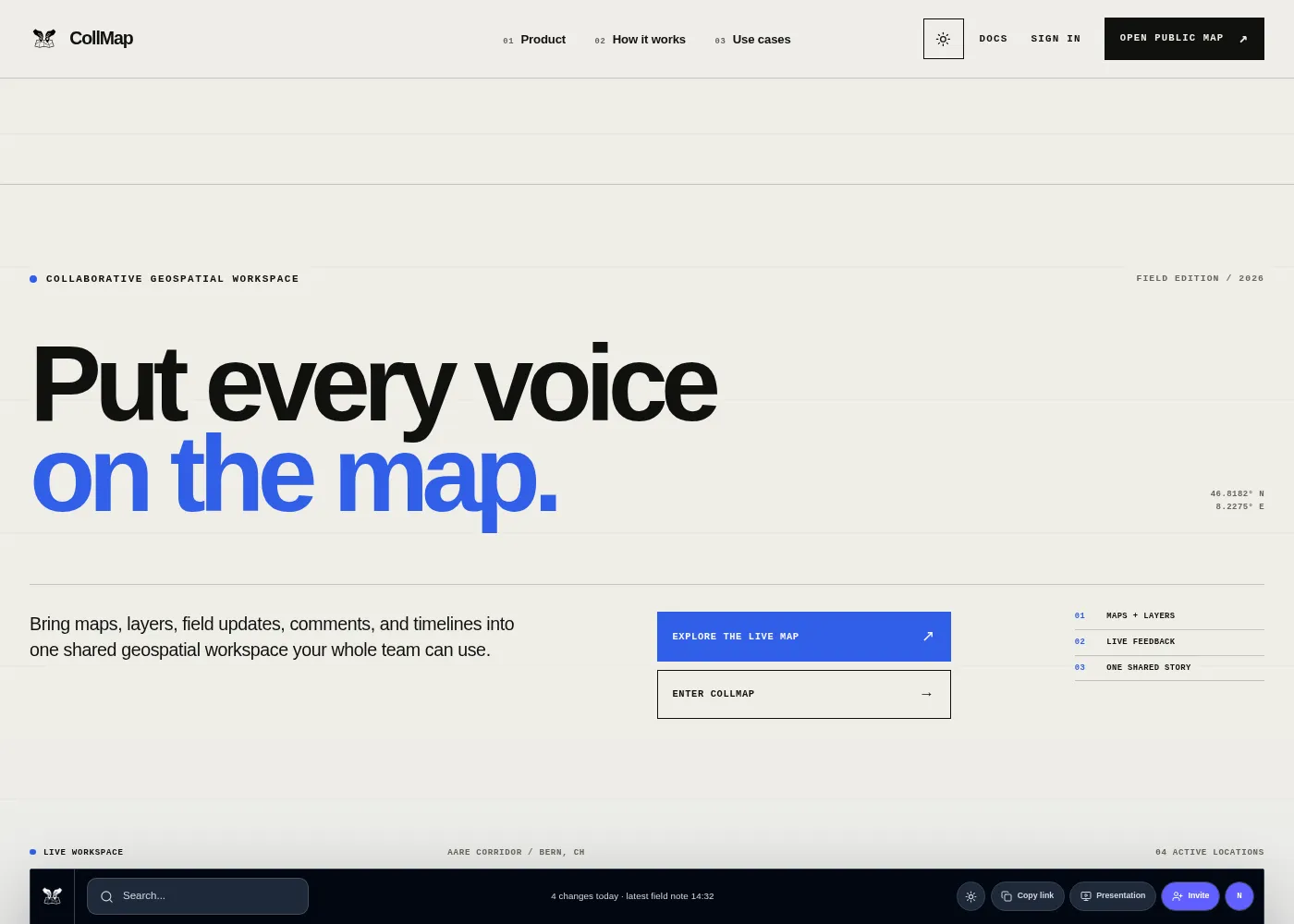
Section titled “The landing page”Visiting the site while signed out shows the marketing landing page — an overview of what CollMap does, with two calls to action:
- Get Started — signs you in and takes you to your My Rooms dashboard.
- Public Room — opens a read-only public demo room so you can look around without an account.
Signing in
Section titled “Signing in”CollMap uses your organization’s single sign-on. Clicking Get Started (or any action that needs an account) sends you to the login screen; after you authenticate, a brief “Completing authentication…” screen hands you off to My Rooms. Sessions refresh automatically, so you normally sign in once.
The My Rooms dashboard
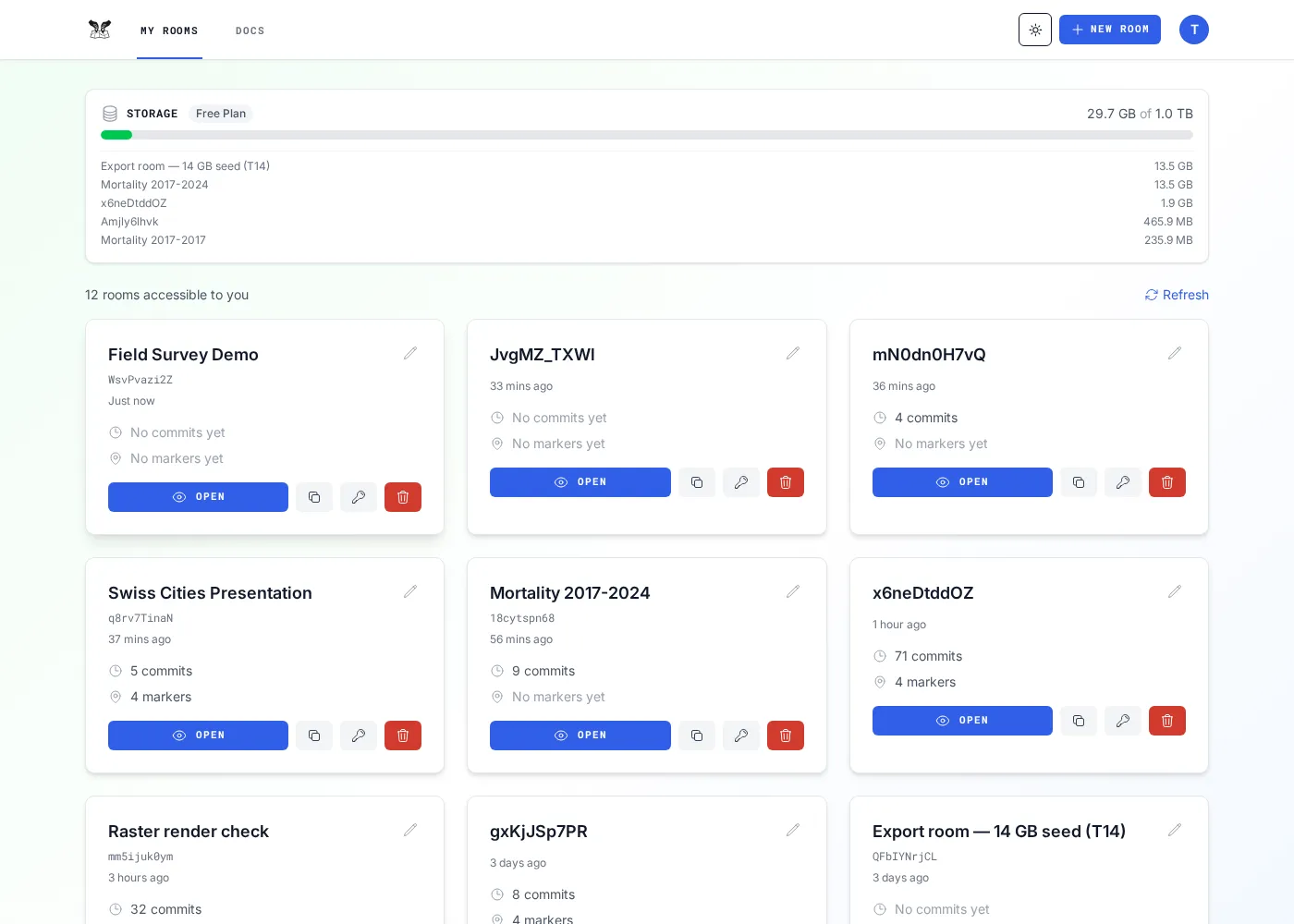
Section titled “The My Rooms dashboard”My Rooms is your control center. From here you:
- Create a room with the New Room button (see Create a Room).
- Open, rename, copy the link to, manage API tokens for, or delete any room you own or belong to — each room is a card in the grid.
- Accept invitations — when someone invites you, a pending-invitation banner appears here.
Storage usage
Section titled “Storage usage”Every account has one total storage cap shared across all your rooms (there’s no per-room limit and no cap on how many rooms you create). The usage bar shows how much of your plan you’ve used:
| Plan | Total storage |
|---|---|
| Free | 10 GB |
| Pro | 100 GB |
| Team | 1 TB |

The bar turns amber as you approach the cap and red once you’re over it, with a per-room breakdown underneath. Storage is charged to the room owner, and deleting data (a layer, or a whole room) frees it up immediately.